
This page is intended for the IT people managing your site. You can download more detailed instructions in pdf format in https://plazadrm.com/wp-content/uploads/Setup_Instructions_EN.pdf.
Installing PlazaDRM on your website is easy, as is uninstalling it. Start by installing the SimpleDRM plugin on your website. Install it from the WordPress repository and activate it. Don’t configure it yet.
Next, sign up at https://plazadrm.com, verify your email, and go to the Dashboard menu option. There, click the “Add Store” button.
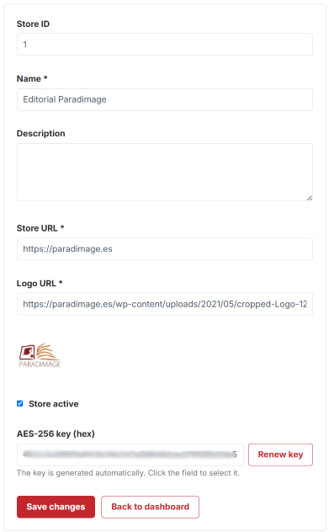
This will take you to the store details page. Enter your website address (in the format https://misitio.com), add a brief description, and provide the URL for your logo. If you don’t know it, go to your website, right-click on the logo, and select “Copy image address.” Save the changes, and you’ll see your store appear on the Dashboard.

Go back to the store page (Edit button), and you’ll see some new fields. Copy the Store ID and the AES-256 key. Exit without saving the changes.
Go to your own website, log in as an Administrator, and select Settings > SimpleDRM. This will take you to the plugin’s settings page.
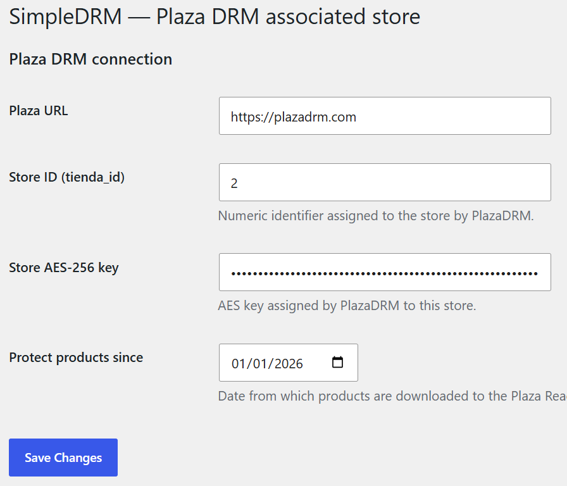
Leave the Plaza URL as is, copy the Store ID and AES key you obtained during the PlazaDRM sign-up process, and enter the current date in the “Protect products from” field. Save the changes. You’ve now connected your store to Plaza!
Any products you mark as protected cannot be downloaded from your website; instead, they will only be accessible through the Plaza Reader. Products purchased before the date specified on the Settings page are not protected and can be downloaded in the same way customers did originally.
To protect a product, go to the product page and click the “General” tab. You’ll see a new field labeled “Protected by SimpleDRM,” which you must check to prevent the product from being downloaded:
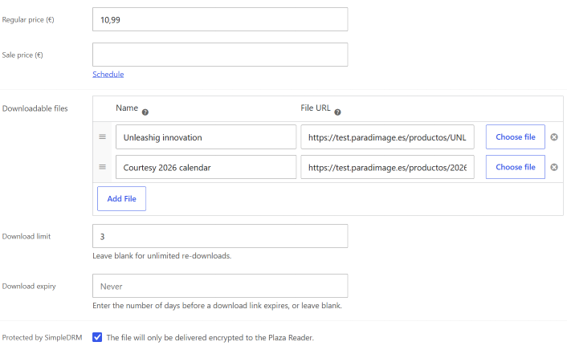
Remember that only epub, pdf, and mp4 files can be downloaded through the Plaza Reader. Files of other types will be downloaded via your store’s normal procedure.
A product may consist of multiple files. In the Reader, all files will display your product’s Featured Image as their icon, and their name will be the product name followed by the file name in parentheses. For example: Photography Course (Part I).
Try protecting a product, purchasing it, and seeing how the shopping experience changes. Once you’ve purchased and downloaded it in the Reader, return to the PlazaDRM dashboard. You’ll see a “1” in the “Unique Customers” field, and by clicking the download icon next to it, you can see which email address made the purchase, which products were downloaded, and when. A few credits will also have been deducted from your balance.
And that’s it. Protect the products you see fit, and feel free to contact us with any questions.